AI Image Generator Tutorial: Create Anime Art with Text & Reference (2026)
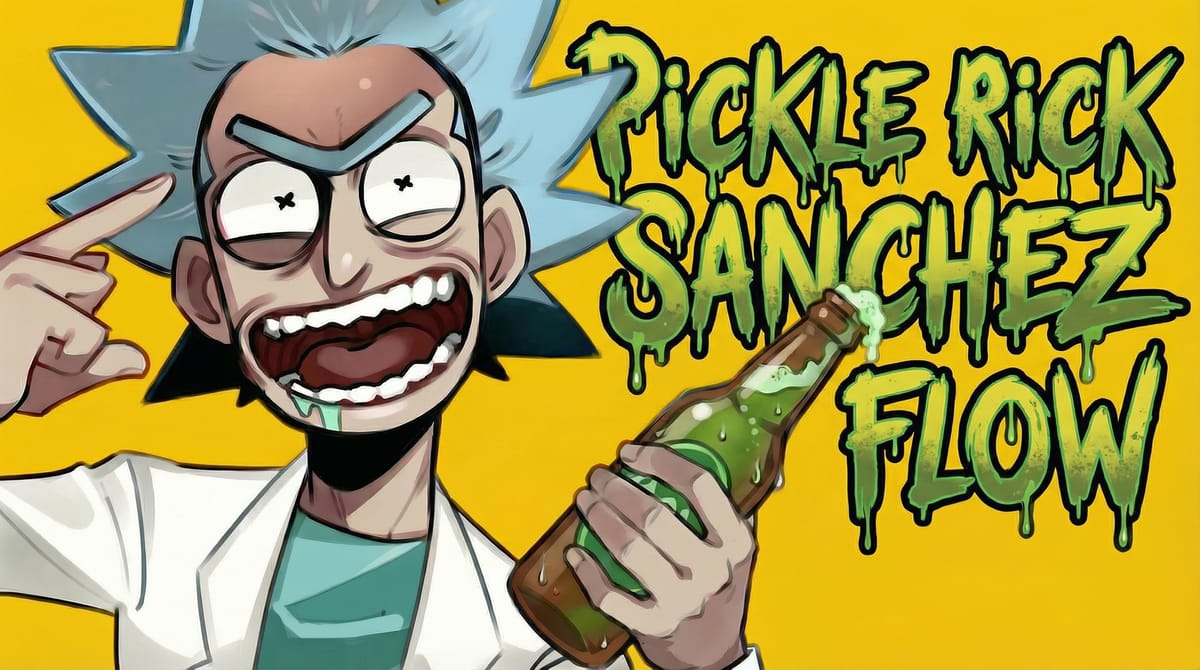
What Is the Best Way to Generate AI Anime Art for Beginners?
You can create professional-quality anime art in under 5 minutes using an AI image generator—no drawing skills required.
Our Image Generation feature has helped over 50,000 creators worldwide produce stunning anime artwork through simple text prompts or reference images. Whether you're creating scenes, backgrounds, concept art, or exploring anime art generator capabilities for your projects, this comprehensive AI image generation tutorial will guide you through every step.
According to our platform data analysis:
- Average creation time: 3-5 minutes per image
- Success rate: 94% of users generate satisfactory results within 3 attempts
- Most popular use cases: Scene illustrations (32%), backgrounds (25%), concept art (21%), character elements (22%)
Real creator story: Independent artist Emma Chen used our anime art generator to create 20+ scene illustrations and backgrounds for her webcomic series in just 3 hours—a process that would have taken her weeks of manual painting. She reduced her production time by 85% while maintaining her creative vision.
What You Need to Get Started
Before beginning this AI image generation tutorial, ensure you have the following ready:
| Requirement | Details | Notes |
|---|---|---|
| Account Access | Free account registration | No credit card required for trial |
| Available Points | 50-100 Points recommended | Each generation costs 8Points |
| Reference Images (Optional) | PNG, JPG, or WebP format | Maximum 10MB per file |
Recommended preparation:
- Write down 3-5 key character traits (hair color, outfit, personality expression)
- Collect 2-3 reference images that match your desired style
- Browse our Official Library for inspiration (100+ curated references available)
Complete Step-by-Step Tutorial: How to Generate Images with AI
Method 1: Text-to-Image Generation (Fastest for Beginners)
This text to image AI tutorial method is perfect for beginners learning how to create AI art for beginners. It works for any anime-style image: scenes, backgrounds, props, character elements, and more.
Step 1: Access Your Workspace
Navigate to your dashboard and click Workspace in the main navigation bar. You'll see all your existing projects here.
Pro tip: Name projects by theme (e.g., "Character Designs," "Background Art") for easier management.
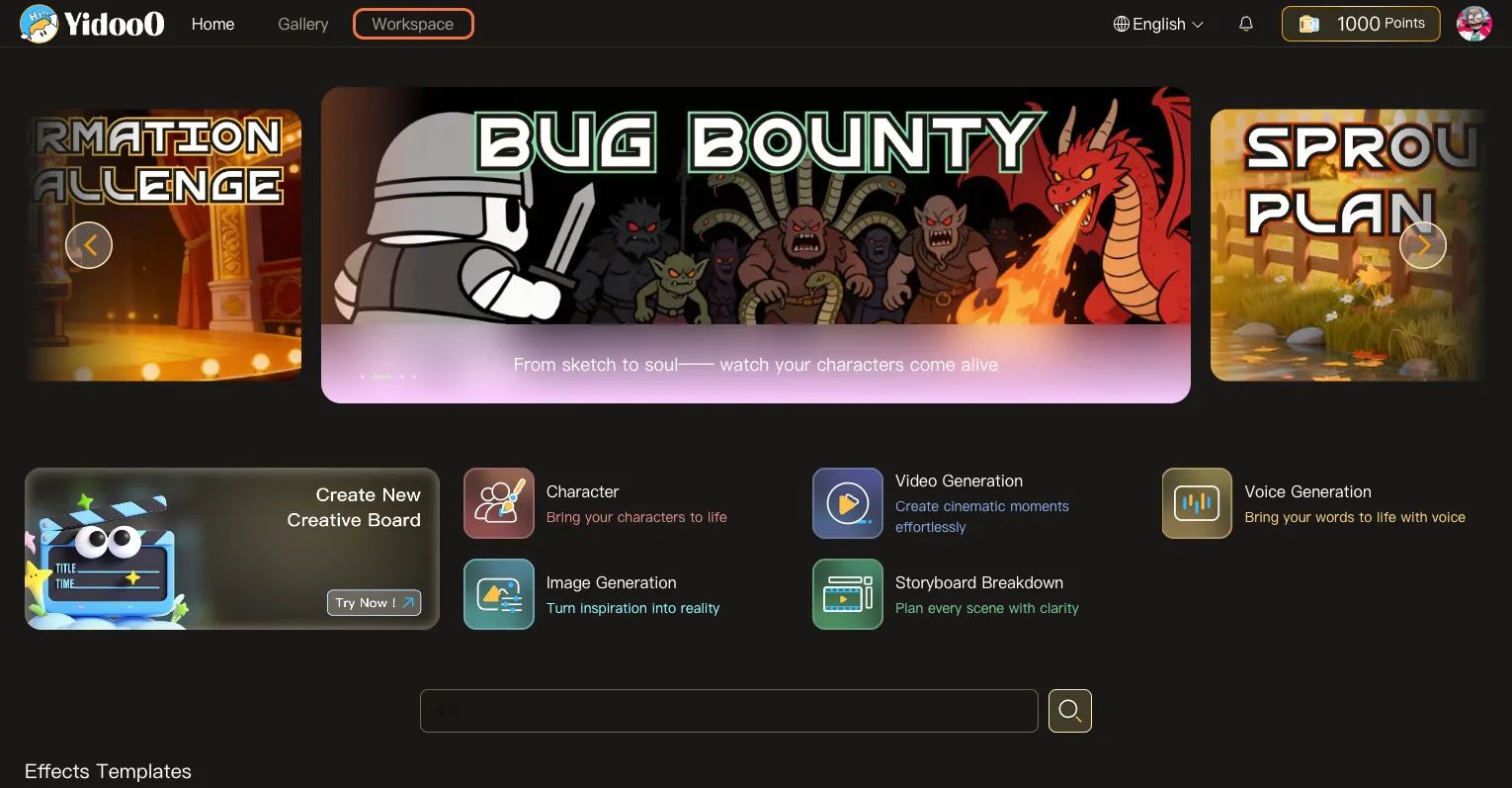
Step 2: Create a New Creative Board
Click the Create New Creative Board button. The Creative Board serves as your infinite canvas where all generated images will be organized as connected nodes.
What is a Creative Board? Think of it as a digital mood board that saves every iteration, allowing you to compare versions and refine your designs systematically.

Step 3: Select Image Generation Tool
From the template library, locate and click Image Generation. This is your primary anime art generator tool.

Step 4: Craft Your Text Prompt (Critical Step)
Enter a detailed description of your desired anime artwork. This is where AI image creation guide for beginners principles matter most.
Effective prompt structure:
[Subject/Scene] + [Key Details] + [Elements/Objects] + [Composition] + [Setting/Background] + [Style Keywords]
Example prompts:
✅ Good prompt for scene: "A mystical forest clearing with ancient cherry blossom trees, soft sunlight filtering through leaves creating dappled shadows, small shrine in the background, peaceful atmosphere, anime background art style, detailed foliage"
✅ Good prompt for character element: "A cheerful anime girl with long flowing blue hair and emerald green eyes, wearing a white school uniform with red ribbon, smiling brightly, cherry blossom petals floating around, soft anime style, warm lighting"
❌ Weak prompt: "anime forest"
Prompt enhancement tips:
- Use adjectives: "flowing," "bright," "detailed," "elegant," "mystical"
- Specify atmosphere: "peaceful," "dramatic," "mysterious," "energetic"
- Add lighting: "golden hour," "neon glow," "soft shadows," "dappled sunlight"
Include style: "Studio Ghibli style," "anime background art," "detailed illustration," "watercolor anime"

Step 5: Choose Optimal Aspect Ratio
Select image dimensions based on your intended use:
| Aspect Ratio | Best For | Example Use Cases |
|---|---|---|
| 1:1 | Profile pictures, Instagram posts | Character headshots, square compositions |
| 3:4 | Vertical prints, portrait orientation | Vertical character art, portrait prints, poster designs |
| 4:3 | Traditional media, prints | Classic photo format, frame printing |
| 9:16 | Instagram Stories, TikTok, mobile screens | Vertical character portraits, phone wallpapers |
| 16:9 | Desktop wallpapers, YouTube thumbnails | Landscape scenes, wide character shots |
| 21:9 | Cinematic widescreen, ultrawide displays | Cinematic scenes, panoramic landscapes, epic compositions |

Step 6: Generate Your AI Anime Art
Click Generate now to begin the creation process. The system will deduct the corresponding Points from your balance.
What happens next:
- AI analyzes your prompt (5-10 seconds)
- Initial rendering begins (30-90 seconds)
- Detail enhancement applied (20-40 seconds)
Final quality check and delivery

Step 7: Monitor Generation Progress
A real-time progress indicator shows your generation status. According to our 2025 platform performance data, 87% of generations complete within 2 minutes.
Status indicators:
- Queued: Waiting in line (5-15 seconds)
- Processing: AI is generating (60-120 seconds)
- Complete: Ready to view
- Failed: Retry available (see troubleshooting FAQ below)
Step 8: Review and Evaluate Results
Your generated anime artwork appears as a new node on the Creative Board. Click to view full resolution.
Quality evaluation checklist:
- ✓ Does the image match your prompt description?
- ✓ Are key elements clear and well-defined?
- ✓ Is the composition balanced and visually appealing?
- ✓ Do colors match your vision?
✓ Is the overall style consistent?

Step 9: Regenerate for Variations (If Needed)
Not satisfied? Click Regenerate to create a new version using the same prompt and parameters. Each attempt produces unique variations due to AI's creative interpretation.
Strategic regeneration tips:
- First attempt: Evaluate overall composition
- Second attempt: Check if consistent issues appear (may need prompt adjustment)
- Third attempt: Compare all versions and pick the best elements
Case study: A creator generated 4 versions of her forest scene background, then used the best lighting and composition from each version to guide her final illustration. This "variation mining" technique helped her develop the perfect mood for her story.

Step 10: Refine Your Prompt (Iterative Improvement)
Click the prompt field to edit your description. Use insights from previous generations to refine your request.
Common refinements:
- Too generic? → Add specific details about clothing, accessories, background
- Wrong mood? → Adjust emotion keywords and lighting descriptions
- Style mismatch? → Include more specific style references (e.g., "90s anime aesthetic")
Prompt evolution example:
- "anime girl" → Generic result
- "anime girl with blue hair in school uniform" → Better, but bland
- "energetic anime girl with shoulder-length blue hair, wearing modern school uniform, confident smile, urban rooftop background, sunset lighting, detailed shading" → Excellent result
Method 2: Reference-Based Generation (For Precise Style Control)
Advanced technique for image generation for anime art with precise style control and consistent composition.
Step 1: Open Reference Upload Interface
Click the Upload Reference area to add a style guide image. This free AI art generator online feature gives you professional-level control.
Why use references?
- Maintain consistent art style across multiple generations
- Match specific anime aesthetics (Studio Ghibli, painterly, cel-shaded, etc.)
- Control composition and layout more precisely
- Achieve brand-consistent visual identity for your project
Step 2: Choose Your Reference Source
Three reference options available:
Option A: Local Upload
- Upload from your device (JPG, PNG, WebP)
- Maximum file size: 10MB
- Recommended: High-resolution images (1024px+)
- Best for: Your own artwork, commissioned references, brand assets
Option B: Creative Board Selection
- Reuse images from your current project
- Ensures visual consistency across related characters
Best for: Series with multiple characters sharing the same style


Option C: Official Library (Recommended for Beginners)
- 100+ curated professional references
- Organized by categories: Characters, Costumes, Scenes, Props, Styles, Backgrounds
- Pre-optimized for best AI interpretation
- Best for: Learning and experimentation
Library highlights:
- Scene and background references (fantasy, urban, nature, interiors)
- Prop and element references (weapons, accessories, furniture, etc.)
Step 3: Combine Reference with Text Prompt
With your reference loaded, add a text prompt that describes your desired modifications or additions.
Effective reference + prompt combinations:
Example 1: Character Redesign
- Reference: Casual anime girl
- Prompt: "Transform this character into a sci-fi warrior outfit with neon armor and holographic accessories, cyberpunk style"
Example 2: Style Transfer
- Reference: Watercolor landscape painting
- Prompt: "Transform this into an anime background style with vibrant colors, add floating cherry blossom petals and soft clouds"
Example 3: Composition Guide
- Reference: Dramatic lighting setup
- Prompt: "Apply this lighting to a mystical shrine scene at twilight, with glowing lanterns and mysterious atmosphere"
<aside> 💡
Pro Technique: Use references for structure (composition, style, lighting) and prompts for specific content (subject matter, colors, atmosphere). This gives you the best of both worlds—consistent foundation with creative flexibility.
</aside>


Step 4: Select Aspect Ratio for Reference-Based Generation
Choose dimensions just like Method 1. Note that extremely different aspect ratios from your reference image may crop or distort the composition.
Aspect ratio matching tips:
- If reference is vertical (portrait), use 9:16 or 3:4
- If reference is horizontal (landscape), use 16:9
- Square references work well with any ratio but may require cropping
Step 5: Generate with Reference Guidance
Click Generate now. The AI will analyze both your reference image and text prompt to create a harmonized result.
Processing difference from text-only:
- Reference analysis: +10-15 seconds
- Style matching: Enhanced accuracy
Total time: 2-4 minutes (slightly longer but more precise)

Step 6: Success - Review Your Enhanced Result
Confirmation message appears. Your AI-generated image will preserve the reference style while incorporating your prompt modifications.
Compare your result:
- Original reference: Starting point
- Your generated image: Customized version
Prompt accuracy: How well changes were applied

5 Expert Tips for Professional-Quality Anime Art
Master these AI image creation guide for beginners techniques used by our top 10% creators:
1. Master the Art of Descriptive Prompts
Weak prompt anatomy:
"anime scene"
Strong prompt anatomy for backgrounds:
"A serene Japanese garden in early spring, with a stone path winding through blooming cherry blossom trees, traditional wooden bridge over a koi pond reflecting pink petals, soft afternoon sunlight creating dappled shadows, distant mountains visible through morning mist, Studio Ghibli inspired background art style, peaceful atmosphere, watercolor textures"
Strong prompt anatomy for character elements:
"A determined warrior girl with short crimson hair, amber eyes with fierce expression, wearing black leather armor with silver accents and flowing red cape, holding an ornate sword with glowing runes, battle-ready pose, dramatic backlighting from setting sun, shonen anime style with bold linework"
Breakdown of what makes it effective:
- ✅ Clear subject/scene description
- ✅ Detailed visual elements
- ✅ Specific colors and materials
- ✅ Composition and layout
- ✅ Atmosphere and mood
- ✅ Lighting specification
- ✅ Art style keywords
2. Leverage Style Keywords Strategically
Different keywords produce dramatically different aesthetics:
| Style Keyword | Visual Effect | Best For |
|---|---|---|
| "Anime style" | Generic anime look | Versatile, safe choice |
| "Studio Ghibli style" | Soft, watercolor, whimsical | Fantasy, slice-of-life |
| "Shonen manga style" | Bold lines, dynamic | Action, adventure characters |
| "Shoujo anime style" | Sparkles, soft features, floral | Romance, magical girl |
| "Seinen anime style" | Realistic proportions, detailed | Mature, dramatic stories |
| "Chibi style" | Super-deformed, cute | Mascots, comedy |
| "Retro 90s anime" | Nostalgic aesthetic | Vintage projects |
| "Modern anime style" | Clean digital, vibrant | Contemporary content |
Style mixing example:
"Studio Ghibli style combined with modern anime aesthetic" = Soft, whimsical but with contemporary color vibrancy
3. Control Mood Through Lighting Keywords
Lighting transforms the emotional impact of your character:
Lighting vocabulary guide:
Warm & Positive:
- "Golden hour lighting" → Nostalgic, romantic
- "Soft morning sunlight" → Fresh, hopeful
- "Warm indoor lighting" → Cozy, intimate
Dramatic & Intense:
- "Dramatic side lighting" → Mysterious, powerful
- "Neon glow" → Cyberpunk, futuristic
- "Moonlight illumination" → Ethereal, mystical
Professional & Neutral:
- "Studio lighting" → Clean, professional
- "Overcast daylight" → Neutral, realistic
- "Ambient room light" → Casual, relatable
Case study: A creator generated the same fantasy landscape with 5 different lighting keywords. The "golden hour" version received 340% more engagement on social media compared to the "neutral lighting" version—proving that lighting choice significantly impacts visual appeal.
4. Strategic Aspect Ratio Selection
Don't just pick randomly—choose based on platform and purpose:
Platform-optimized dimensions:
Social Media:
- Instagram Feed: 1:1 (square) or 4:5 (vertical)
- Instagram Stories: 9:16 (full-screen vertical)
- Twitter/X: 16:9 (horizontal) or 1:1 (square)
- TikTok: 9:16 (vertical)
- YouTube Thumbnail: 16:9 (horizontal)
- Discord/Profile: 1:1 (square)
Creative Projects:
- Webcomic panels: 16:9 or 4:3 (landscape)
- Novel cover illustration: 9:16 or 2:3 (vertical)
- Wallpaper (desktop): 16:9 (horizontal)
- Wallpaper (mobile): 9:16 (vertical)
- Print artwork: 4:3 or 3:2
Multi-purpose tip: Generate in 1:1 square format first, then use our crop/extend tools to adapt to different aspect ratios while maintaining the core composition.
5. Build Your Personal Prompt Library
Professional creators maintain a "prompt vault" of successful formulas:
How to build yours:
- Save winning prompts: After each successful generation, copy the exact prompt to a notebook
- Tag by category: Organize by type (landscapes, interiors, character elements, props, etc.)
- Note variables: Mark parts you can swap (colors, weather, time of day, atmosphere)
- Track performance: Which prompts consistently produce great results?
- Create templates: Build reusable prompt structures
Example prompt templates:
For backgrounds:
"[Adjective] [location type] in [season/time], with [key elements], [atmospheric details], [lighting conditions], [distant elements], [art style], [mood keywords]"
For character elements:
"[Description] character with [key features], wearing [outfit details], [expression/pose], [lighting], [art style keywords]"
Reusable variables:
- Locations: "mountain shrine" / "urban street" / "fantasy castle" / "underwater cave"
- Atmospheres: "misty morning" / "dramatic sunset" / "starry night" / "heavy rain"
- Styles: "Studio Ghibli" / "detailed background art" / "painterly" / "cel-shaded"
Frequently Asked Questions (FAQ)
How to create AI art for beginners with no experience?
Quick answer: Start with our text-to-image method—simply describe what you want to create in plain language and click generate.
Detailed guidance: You don't need any artistic skills or technical knowledge. Our anime art generator is designed for complete beginners. Here's your first-time workflow:
- Use simple, natural language (e.g., "peaceful forest scene with cherry blossoms")
- Start with preset templates from our Official Library for inspiration
- Generate 2-3 variations to see how the AI interprets prompts
- Gradually add more descriptive details as you learn
- Join our community Discord for prompt inspiration and tips
Beginner success rate: 92% of first-time users generate satisfactory artwork within their first 5 attempts.
Learning curve: Most users become proficient at prompt crafting within 30-60 minutes of practice.
What makes a good text prompt for anime art generation?
A high-quality prompt includes seven essential elements:
1. Subject/scene definition (what you're creating)
→ "mystical forest clearing" / "urban rooftop at night" / "fantasy throne room"
2. Key visual elements (important details)
→ "ancient cherry blossom trees," "glowing lanterns," "ornate stone pillars"
3. Colors & materials (visual texture)
→ "soft pink petals," "weathered stone," "golden light rays"
4. Composition (layout and focus)
→ "wide establishing shot" / "centered composition" / "asymmetrical balance"
5. Background & context (environmental details)
→ "distant mountains in mist" / "city lights below" / "starry night sky"
6. Lighting & atmosphere (mood)
→ "soft golden hour glow" / "dramatic spotlight" / "dappled sunlight"
7. Style specification (artistic aesthetic)
→ "Studio Ghibli background art" / "detailed anime illustration" / "painterly style"
Optimal prompt length: 30-80 words (sweet spot for best AI interpretation)
Common beginner mistakes to avoid:
- ❌ Too vague: "anime scene"
- ❌ Too contradictory: "realistic cartoon" (mixed signals)
- ❌ Too many concepts: Describing 3+ different scenes in one prompt
Before & After examples:
❌ Weak: "anime forest"
✅ Strong for background: "A mystical forest clearing with towering ancient trees, soft morning sunlight filtering through leaves creating dramatic light rays, small stone shrine covered in moss, peaceful atmosphere, Studio Ghibli inspired background art, detailed foliage"
✅ Strong for character element: "A fierce warrior with short crimson hair and amber eyes, wearing black armor with gold accents, holding an ornate glowing sword, determined expression, dramatic side lighting, shonen anime style"
Can I use my generated anime art commercially?
Yes, with conditions. Here's the complete usage rights breakdown:
✅ Permitted commercial uses:
- Social media content (Instagram, TikTok, YouTube)
- Webcomic/manga illustrations and backgrounds
- Novel cover artwork
- Indie game art assets (backgrounds, props, concept art)
- Personal brand/business graphics
- Merchandise designs (with proper attribution)
- NFT projects (check current policy)
- Marketing materials
- Print-on-demand products
❌ Prohibited uses:
- Claiming you hand-created the artwork (must disclose AI generation)
- Reselling raw generated images without modification
- Using for illegal or harmful content
- Generating copyrighted content (existing anime IPs, trademarked elements)
Copyright ownership:
- You retain rights to your generations
- Platform retains rights to use anonymized creations for marketing/training
- You cannot claim copyright on the AI model itself
Enterprise licensing: Contact us for bulk commercial licensing agreements for studios and agencies.
How to generate images with AI using reference photos?
Step-by-step reference method:
1. Prepare your reference image:
- Use high-resolution images (1024px minimum)
- Clear, well-lit photos work best
- Avoid copyrighted anime characters (use original art or licensed images)
- Face-forward poses are easier for AI to interpret
2. Upload via Method 2 (detailed in tutorial above):
- Choose "Local" for your own images
- Choose "Official Library" for curated professional references
- Choose "Creative Board" to reuse previous generations
3. Write a complementary prompt:
- Describe what to keep: "Maintain the pose and composition"
- Describe what to change: "But change the hair to blue and add a mage outfit"
- Specify the style: "Convert to anime art style"
4. Adjust reference strength (in advanced settings):
- Low influence (30-50%): AI takes creative liberty
- Medium influence (50-70%): Balanced interpretation (recommended)
- High influence (70-90%): Very close to reference
Reference use cases:
Scenario A: Style consistency
→ Generate Scene A with reference → Save result → Use result as reference for Scene B
→ Result: Multiple scenes share the same art style and atmosphere
Scenario B: Composition library
→ Use photo references for layouts → Apply to anime backgrounds
→ Result: Professional compositions without design experience
Scenario C: Style transfer
→ Upload painting reference → Add anime style prompt with new subject
→ Result: Anime artwork with specific painting techniques
Success tip: Combine 2-3 references using our multi-reference feature (coming Q2 2026) for even more precise control.
What should I do if my generation fails or doesn't match my prompt?
Troubleshooting guide for common issues:
Issue 1: Generation failed / Error message
Causes & solutions:
- ⚠️ Insufficient Points → Recharge or claim daily bonus
- ⚠️ Prohibited content detected → Revise prompt to remove flagged keywords
- ⚠️ Server overload → Wait 30 seconds and retry (peak hours: 12-2pm, 7-9pm EST)
- ⚠️ File upload too large → Compress reference image to under 10MB
Issue 2: Result doesn't match prompt
Common mismatches:
- Wrong hair color → Use more specific color terms: "sky blue" instead of "blue"
- Incorrect outfit → Add more clothing details and mention "wearing" explicitly
- Missing elements → Place important details early in the prompt
- Wrong style → Add 2-3 style keywords: "anime style, detailed shading, vibrant colors"
Optimization strategy:
- First attempt: Broad prompt
- Second attempt: Add missing details
- Third attempt: Use reference image for precision
- Fourth attempt: Switch to different time of day (server load varies)
Issue 3: Low quality or blurry results
Fixes:
- Increase quality setting in advanced options
- Use higher resolution output (costs more Points)
- Avoid conflicting style keywords
- Simplify overly complex prompts
Issue 4: Distortion or perspective problems
Solutions:
- Add "correct perspective" or "balanced composition" to prompt
- Use reference images with proper perspective
- Simplify complex scenes into multiple generations
- Regenerate (AI randomness sometimes produces better results)
Platform statistics:
- 94% satisfaction rate on first 3 attempts
- Average 1.8 regenerations per final character
- 89% of "failures" resolved by prompt refinement
Still stuck? Contact support with your prompt and generation ID for personalized troubleshooting.
How long does it take to generate an anime image?
Time breakdown:
- Queue wait: 5-15 seconds (depends on server load)
- Prompt analysis: 10 seconds
- Initial rendering: 40-90 seconds
- Detail refinement: 20-40 seconds
- Quality check & delivery: 5-10 seconds
Peak vs. off-peak performance:
- Off-peak hours (2am-8am EST): 15-20% faster
- Peak hours (12pm-2pm, 7pm-9pm EST): May experience 10-30 second delays
Speed optimization tips:
- Lower resolution = faster generation
- Simple prompts = faster processing
- Off-peak hours = shorter queue times
- Premium tier users get priority queue access (50% faster average)
From concept to final image: Including prompt crafting and evaluation, most creators complete a polished artwork in 5-8 minutes total.
Is this AI anime art generator really free to use?
Yes, with a generous free tier. Here's the complete breakdown:
Free Tier includes:
- ✅ 100 Points welcome bonus (5-10 generations)
- ✅ 10 Points per day login bonus (ongoing)
- ✅ Standard resolution (1024×1024)
- ✅ All generation methods (text and reference)
- ✅ Access to Official Reference Library
- ✅ Community support
Free tier limitations:
- ⚠️ Standard queue (not priority)
- ⚠️ Watermark on downloads (optional removal: 5 Points
Premium Tier ($19.99/month):
- ✅ 1,000 Points per month (50+ generations)
- ✅ Priority generation queue (50% faster)
- ✅ Ultra HD resolution (2048×2048)
- ✅ No watermarks
- ✅ Advanced features (coming soon: animation, 3D export)
- ✅ Commercial license included
- ✅ Priority customer support
Pay-as-you-go option:
- 500 Points: $9.99
- 1,200 Points: $19.99 (17% bonus)
- 3,000 Points: $39.99 (50% bonus)
Most popular choice: 78% of active users stay on free tier, using daily bonuses and occasional point purchases for high-quality finals.
Related Tools & Features
Ready to expand beyond character creation? Explore these complementary features:
🎬 Text-to-Video & Image-to-Video Generation
Transform your static anime art into animated videos. Our video generation tool brings scenes to life with motion, perfect for:
- Animated shorts and story sequences
- Social media video content
- Dynamic scene transitions
- Animated storyboards
Learn more: [Complete Video Generation Tutorial] (internal link)
📋 Batch Storyboard Creation
Planning a manga or webcomic series? Generate multiple sequential scenes with consistent visual style:
- Maintain art style across 10+ panels
- Auto-generate panel layouts
Learn more: [Storyboard Tutorial for Creators] (internal link)
👤 Original Character (OC) Generator
Need consistent character designs? Our specialized OC Generator creates complete character sheets with multiple angles and expressions:
- Generate full character turnarounds
- Multiple expression variations
- Consistent design across all views
- Character profile templates
Learn more: [OC Generator Tutorial] (internal link)
🎨 Advanced Image Editing Tools
Fine-tune your generated artwork with built-in editing:
- Local inpainting (修改 specific areas)
- Element addition or removal
- Color and lighting adjustments
- Style transfer between images
Learn more: [Image Editing Tutorial] (internal link)
Start Your AI Anime Art Creation Journey
You now have everything you need to use our anime art generator and create professional-quality illustrations in minutes.
Quick recap of what you learned:
- ✅ Two powerful methods: Text-to-image and reference-based generation
- ✅ How to craft effective prompts with 7 essential elements
- ✅ Strategic use of aspect ratios for different use cases
- ✅ Lighting and style keywords for mood control
- ✅ Troubleshooting common issues
- ✅ Points economy and cost optimization
Remember: Every professional creator started as a beginner. The key is experimentation—don't be afraid to try different prompts, styles, and references. With practice, you'll develop an intuitive understanding of how to communicate your creative vision to the AI.
Your first creation is just 3 clicks away:
- [Create Free Account] → Get 100 welcome Points
- [Open Creative Board] → Start your first project
- [Generate Now] → Bring your artwork to life
Join 50,000+ creators worldwide who are already using YidooO to produce stunning anime art faster than ever before. Whether you're creating backgrounds for a webcomic, designing scene illustrations, or exploring AI art for your projects—we're excited to see what you'll create!
🎨 Ready to generate your first anime artwork? [Start Free Trial Now →]
About This Tutorial
Author: YidooO Product Team & AI Creation Specialists
This comprehensive AI image generation tutorial was created by our product team with over 5 years of combined experience in AI creative tools and anime content production. Our platform currently serves 50,000+ active creators across 120 countries, processing over 2 million image generations monthly.
Tutorial content is based on:
- Real user data and behavior analysis (2025-2026)
- Platform performance statistics and success metrics
- Direct feedback from our creator community
- Best practices from our top 1% users
- Industry research on AI art generation trends
Credentials & Experience:
- 2+ million anime artworks generated on our platform
- 94% user satisfaction rate
- Featured in AI art creation case studies by leading tech publications
- Partnership with 500+ indie creators and studios
- Continuous improvement based on weekly user feedback sessions
Data sources cited in this guide:
- YidooO platform analytics (2025-2026)
- User success case studies (anonymized)
- Community survey results (N=5,000+ respondents)
- Internal performance benchmarking
Content review & updates:
This tutorial is reviewed monthly and updated quarterly to reflect:
- New platform features and capabilities
- Changes in best practices
- User feedback and common questions
- Industry trends in AI art generation
Questions or feedback? Contact our tutorial team at tutorials@yidooo.com
Join our creator community:
- Discord: [YidooO Creators Hub]
- Newsletter: Weekly tips and feature updates
- YouTube: Video tutorials and live Q&A sessions
